eLandings User Manual
Operations Administration
Need to Administer Users?
Create A New Operation within eLandings as an Existing Administrative User
How to Create a New User Account for an Existing Operation
Need to Register a Brand New Operation?
See: How to Register a New Operation in eLandings
Need to Create a New User (person) for an Existing Operation?
See: How to Create a New User Account for an Existing Operation
eLandings Operations Administration
The eLandings system was recently restructured to allow end users to efficiently manage dependent operations, such as custom processing and buying stations.
If you are an Administrative user, you will notice that the eLandings main menu now includes a link called, Administer Operations.
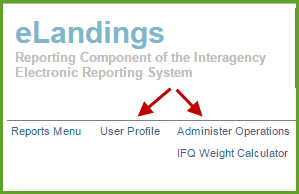
There is also a User Profile link which is available for all authorized users of the eLandings system and enables the customization of report displays, number of decimal points to display, itemized catch lines, etc... It also allows users to update email addresses, select their default operation, and choose printing options.
- We highly recommend that end users review their User Profile annually to ensure the application meets their unique expectations.
Operations are defined as an entity that receives seafood product and is required to complete landing and production reports, as well as IFQ reports, and also has a unique and valid Fisheries Business License – ADF&G Processor Code.
For the purposes of this document, we will refer to this type of operation as a parent operation.
- A parent operation can be a plant receiver, an at-sea processor, or a buyer/exporter.
- A parent operation may have dependent operations that share the same processor code.
- Dependent (child) operations include buying stations and custom processing relationships.
With the expansion of dependent operations, the display of these categories became visually confusing.
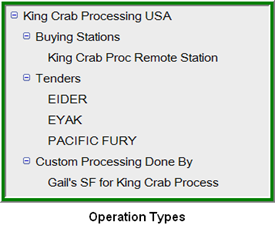
- The restructured operation administration now uses a tree structure to display the parent and child operations.
In the following example, King Crab Processing USA is the parent operation, with buying stations and custom processing identified by relationships. Management of these operations will be discussed in detail later in this document.
The User Profile allows you to set a default operation which will be the operation that is displayed when you first login to eLandings.
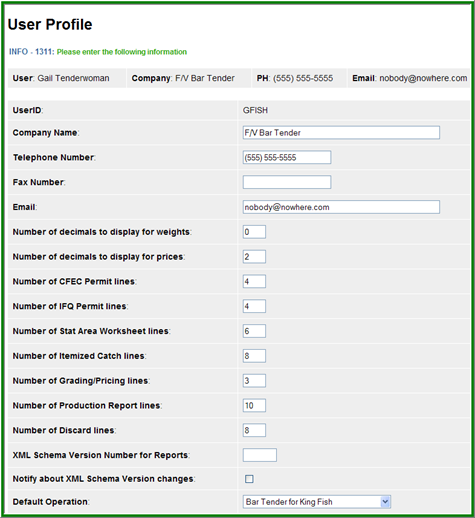
Note the Default Operation for user Gail Tenderwoman is the Bar Tender for King Fish.
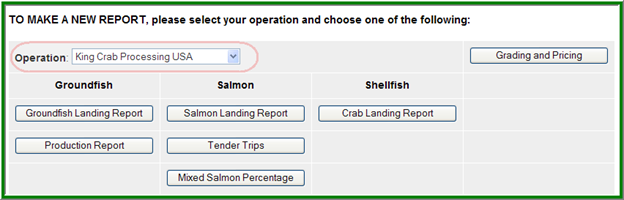
Processors with more than one processing facility frequently have users that are authorized for multiple operations.
Also note the new location of the Grading and Pricing button directly across from the Operation selection, upper right hand corner of the display above.
The Operations Main Menu
When you select Administer Operations from the Reports Menu, the Operations and Users page will display.
- If you do not have Administrative authorization, you will not be able to access the Operations and Users section of elandings.
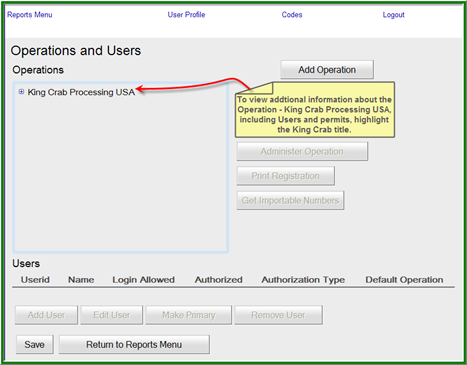
- Depending on the number of parent operations you are authorized to administer, one or more parent operations will be displayed on the main menu.
- To display the operation permit profile, simply click on the name.
- This action displays operation details; all users associated with this operation, and allows for the addition of dependent operations and management of users.
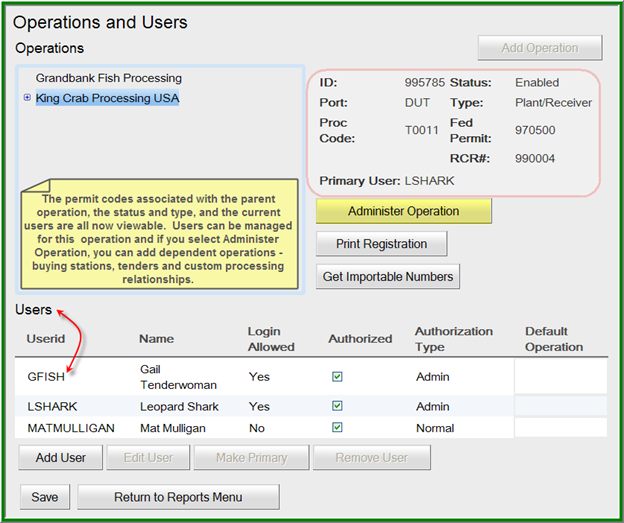
- As you review the screen shot above, note the + symbol to the left of King Crab Processing USA operation.

- This + symbol indicates that this parent operation has child operations. Grandbank Fish Processing does not currently have dependent operations.
View and Add Dependent Operations
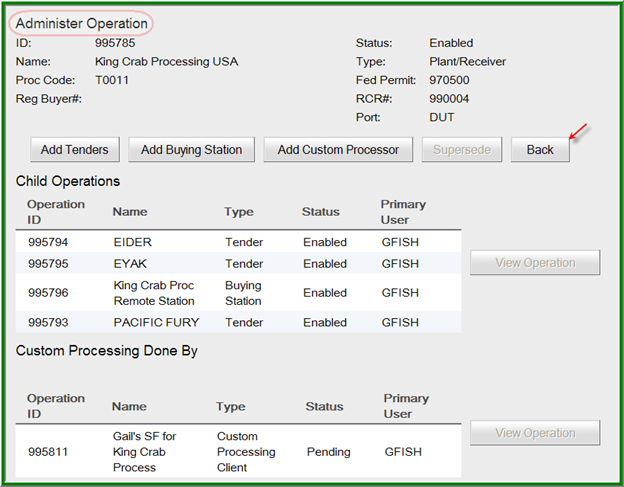
When you click on the Administer Operation button, all child (dependent) operations of the parent are displayed.

Add Tenders
From this application screen you can add tenders, buying stations and custom processors. Note the Back button, which will aid you in navigation through the Operation features of eLandings.
To add a tender, simply click on the Add Tender button.
- Note the users below this list of tender operations.
- These are the authorized users for the parent operation.
- You can add one of more of these users to each of the tender operations by simply clicking the check box.
- If you know the Tender Operator and that operator has an existing eLandings user account, you can add the exisitng Userid at the time you establish the tender operation, but it is not required. Most processors do not know the name of the operator, but do know the tenders that will participate in the fishery.
- The Add Tender Operations feature allows you to establish the tender operations and identify the limited user tender operator at a later time by simply selecting the tender and selecting, Add User.
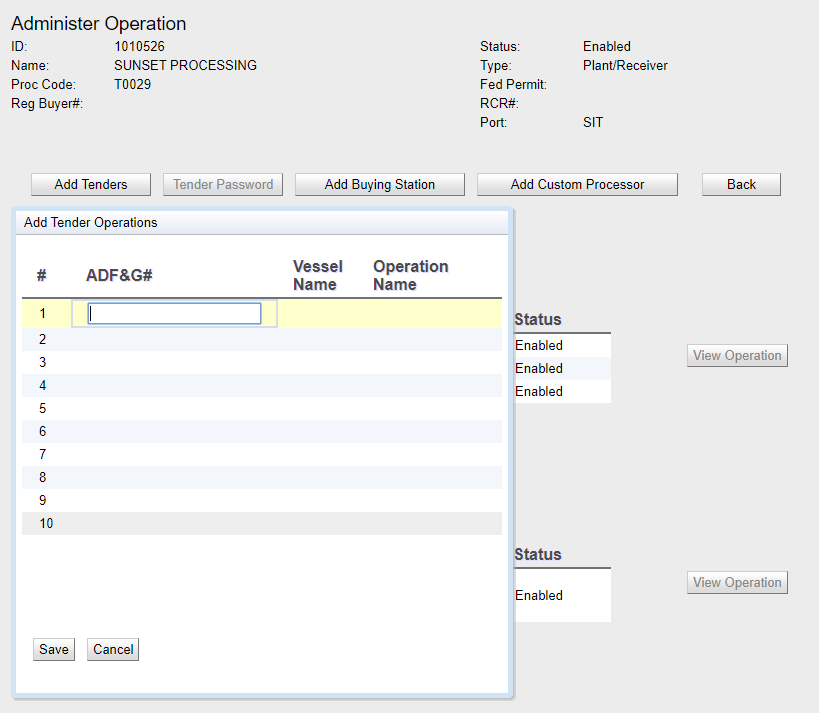
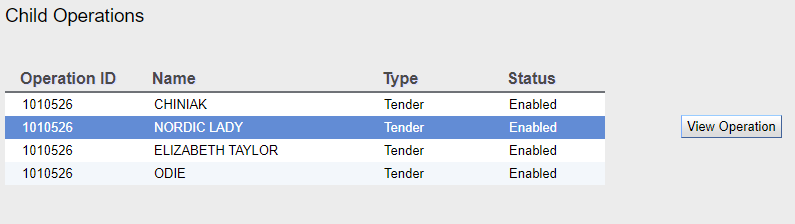
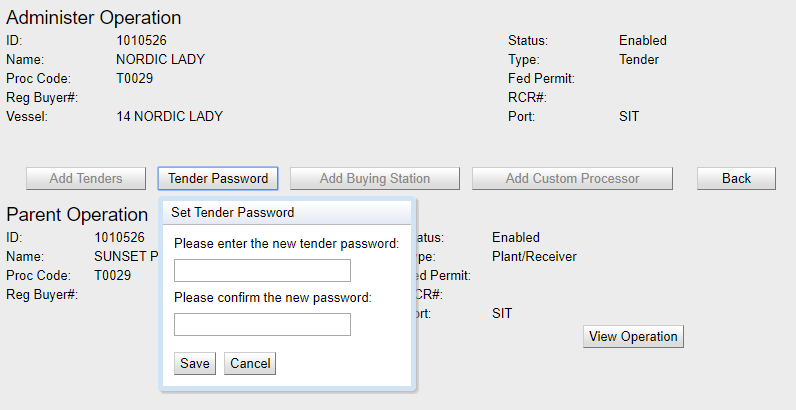
- To set the password for the new tender, click on the tender name and then click View Operation
- Enter the password and click save
Add Buying Station
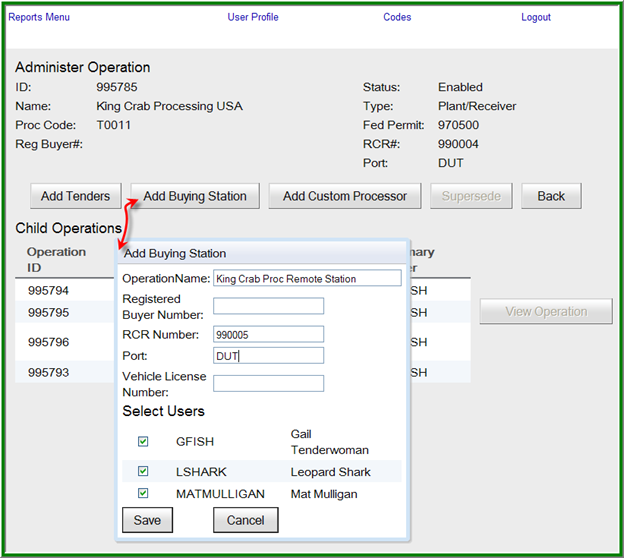
The process of adding a buying station is quite similar.
- The Proc Code, FPP, and RB permits can be taken from the primary "parent" operation
- If the buying station will receive IFQ crab, a unique Registered Crab Receiver number must be provided.
- A Vehicle License Number is not a required field, but must be completed if you are a vessel applying for a federal fishery permit and you do not have USCG documentation.
Operation ID
We have added an additional piece of information to the Administer Operations display – the Operation ID.
- All parent and dependent (child) operations are now assigned a unique operation ID.
- This ID number can be helpful in autofilling the permit profile of the operation that will provide custom processing.
Add Custom Processor
Please see: Creating a Custom Processing Operation in the Processor Web (HTML5).
Custom Processing operations need to be reviewed by the eLandings support team prior to use.
Please continue to contact eLandings@alaska.gov for review of this operation type and to enable the custom processing operation.
Navigation in the Operation and Users Tree Structure
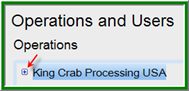
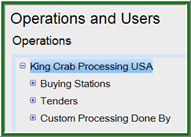
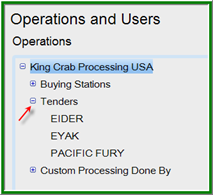
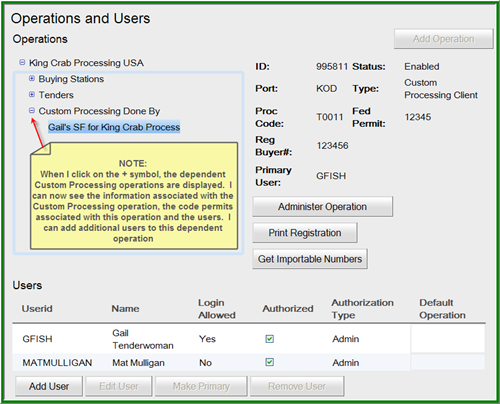
The + symbol indicates that dependent (child) operations are attached to the parent operation or dependent operation category.
- To view them, simply click on the + symbol.
- To contract them, click on the - symbol.
Adding Users to an Operation
To add a user to a primary or dependent operation such as a tender:
- Using the tree structure, click on the + symbol next to the Tender operations
- Click on the specific tender you want to add the user to
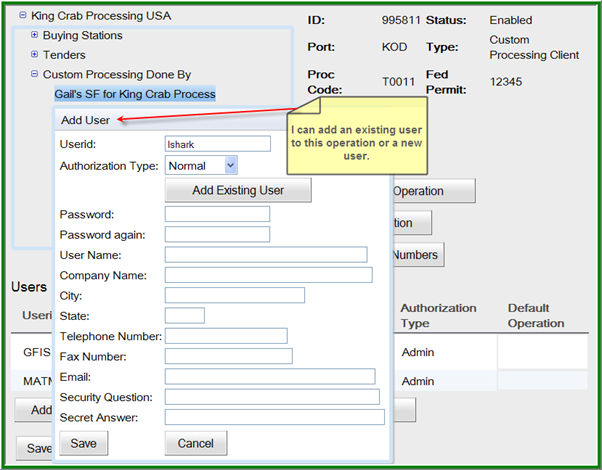
- Enter the UserID
- Choose the authorization type
- If the person you are adding already has an eLandings UserID, you can click on the Add Existing User button
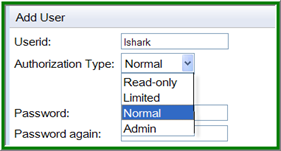
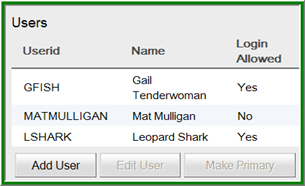
- New users can be added by completing the information displayed in the screen shot above.
- Always remember to Save this information to the eLandings database.
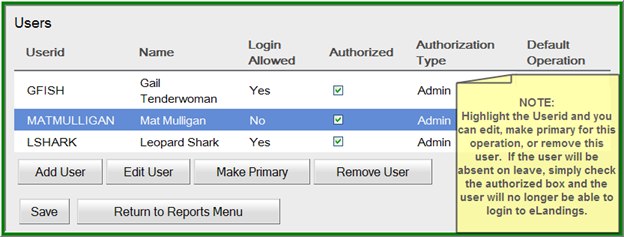
- When an existing or new user is added to an operation, such as JayZee (below), the user is automatically authorized*.
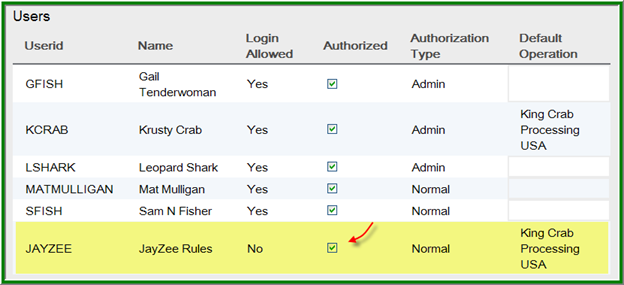
- If JayZee is a seasonal employee, you can simply unclick the authorization checkbox and remove his access to the eLandings System temporarily.
- When he returns from seasonal leave, check the authorization box.
- If he is no longer employed with your company, highlight his user account and select the ‘Remove User’ button.
* NOTE: You do NOT need to have a user agreement signed and submitted to National Marine Fishery Service or the Alaska Department of Fish and Game for final authorization.
We highly recommend that you have the new user read the eLandings User Agreement since processors and their employees are expected to comply with the agreement.
View Operation Characteristics
To view the characteristics of any operation, highlight the Operation and the View Operation button to the left of the list becomes active. Click this button and the Operation profile is displayed.
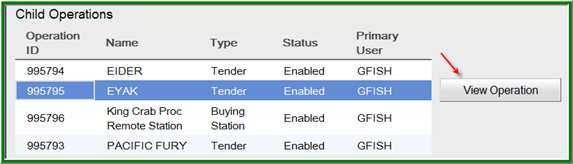
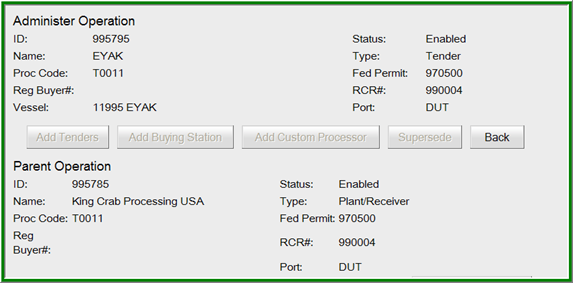
Note the Back button on the right of the screen display. You should use the back button as your navigation aid in the Operations features. When you reach the main page of the Operations and Users page, the back button disappears and a Return to Reports Menu appears.
Adding a New Independent Operation
- When you first open the Administer Operations page, the Add Operation button is active.
- This allows you to add new independent parent operations.
DO NOT USE THIS FEATURE TO ADD DEPENDENT OPERATIONS!
PLEASE FOLLOW THE INSTRUCTIONS FOR ADDING DEPENDENT OPERATIONS WHICH ARE COVERED IN THE PRECEDING SECTIONS OF THIS DOCUMENT.

- To add a new independent operation, select the Add Operation button on the Operations and Users main page.
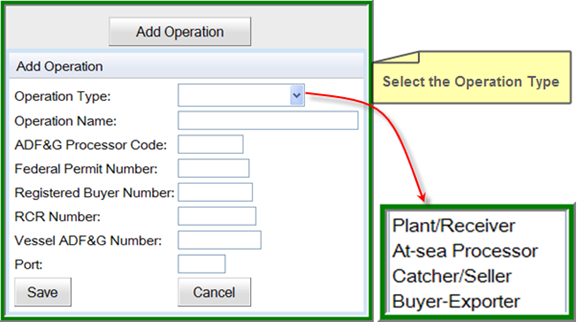
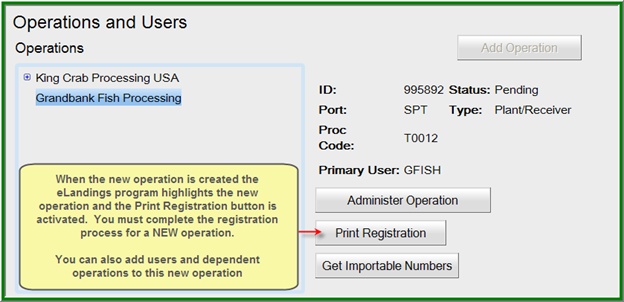
- You will need to print, sign, and fax the new operation registration form to NMFS.
Adding Tenders in the Prompted Mode or Expert Mode
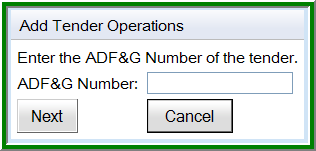
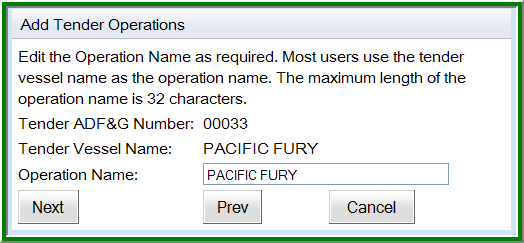
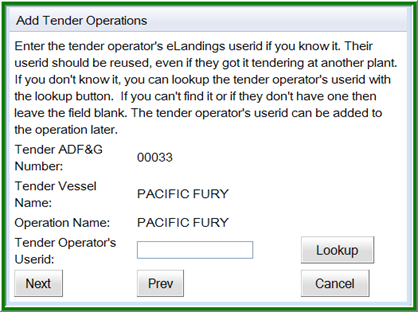
You can add tender operations in the prompted mode, step by step, with explanations, or the expert mode.
Prompted Mode
Expert Mode
- The Expert mode allows you to add up to 10 tenders, at once.
- Identification of the Tender Operator with a Userid is not necessary to save the tender operations, but will be necessary before the tender goes out on the grounds and begins to operate.
- You can add office staff to each of these operations by checking the box below Select Users.
- In the example below, Gail Tenderwoman will be added to each tender operation.
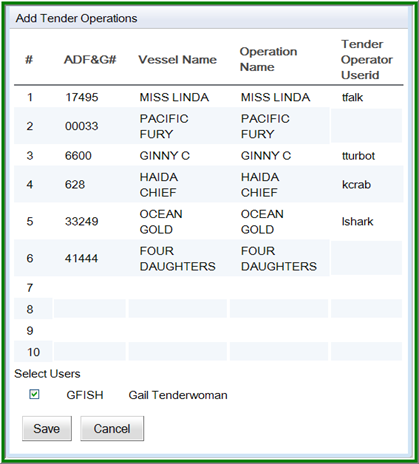
Note that for the administrative user who is logged in and adding the tenders, their Userid will be added to the tender operations whether or not the checkbox by their userid is checked.
However, it is a good practice to always make sure the checkbox by your Userid is checked.

The administration of operations is complex and does require periodic review.
Please retain this document and never hesitate to contact us if you have questions or need assistance at eLandings@alaska.gov
Related Pages
How to Register a New Operation in eLandings
Creating a Custom Processing Operation in the Processor Web (HTML5)
/wiki/spaces/AR/pages/31096921