eLandings User Manual
seaLandings Frequently Asked Questions
- Jennifer Hogan (Unlicensed)
- Sara Villafuerte - NOAA Affiliate
- Former user (Deleted)
How do I know if I have the most current version of seaLandings?
- If you open your seaLandings program and go to Help > About - it should display Release 2022.09.20-14.59.09. This is the release build for 2023.
I am trying to install seaLandings and the black DOS window flashes and closes and I am unable to proceed. What do I do?
- This is likely due to your computer being a 32 bit machines and since 2019 seaLandings requires a 64 bit machine.
- You can continue to use the legacy system on https://elandings.alaska.gov/ if you are unable to update or replace your computer.
Where is my report transmission folder located in the latest version of seaLandings?
That depends on the operating system that is running on your computer and which directory you designated when you installed the latest version of seaLandings.
- Windows 7 default: C:\ProgramData\sealandings
- Windows 10 default C:\ProgramData\seaLandings
- Windows XP default: C:\Documents and Settings\All Users\Application Data\seaLandings
What can I do if I can't find the ProgramData folder in my C: drive?
Microsoft programs tend to hide folders and drives so you will just need to unhide your folders by following the steps below:
- Go to Control Panel on your computer
- Locate and open Folder Options
- Go to the View tab > Advanced Settings
- Click on the Show hidden files, folders, and drives option
- Click on the Apply button, then Ok
How do I transmit my reports?
Once you complete your report you need to Save it and close out of the report window.
If using the Direct transmission method:
- Go to Reporting...Transmit Reports.
- Make sure the report you wish to transmit is checked in the Transmit Column.
- Click on the Transmit button.
- A window will pop-up and tell you that your report was transmitted and processed.
If using the File transmission method:
- Go to Reporting...Transmit Reports.
- Make sure the report you wish to transmit is checked in the Transmit column.
- Click on the Transmit button only one time.
- Then click OK and close out of the Transmit Report box.
- Open your email account and attach the transmission file to an email addressed to elecrep@noaa.gov.
- Your transmission file is located in C:\ProgramData\sealandings\transmissions.
- You can leave the Subject line blank.
- Send your email.
- When you get the return email, save the attachment to C:\ProgramData\sealandings\transmissions.
- In seaLandings go to Reporting…Process Return Receipt.
- A window will pop-up displaying the reply file, double click on it.
- Click on the Process File button.
Can multiple reports be sent at the same time?
Yes, multiple reports can be sent at the same time. Make sure all reports that you want to email are check-marked in the Transmit column of the Transmit Reports dialog box. Then click on the Transmit button only one time. When you attach the transmission file to an email, all reports should be contained in that single transmission file.
How do I get more report numbers?
The seaLandings program will display the number of reports you have left in the header section of the main seaLandings window. Generally speaking, if you are low on report numbers the system automatically requests more when you send a transmission file to the database. If you find that you have run out of report numbers, please email elandings@alaska.gov and eLandings support staff will help you get more report numbers.
Which management program should I use?
Management program is a required field when entering report data.
- A detailed list of management programs and their accompanying IDs can be found within the seaLandings program if you click on the Codes link in the header.
- Below you will find all of our management programs with explanations of when they should be used.
AFA: Any AFA vessel that targets pollock and uses pelagic trawl gear in the Bering Sea should mark AFA as the management program.
- Management program ID is required for AFA vessels: list 200 for CPs and 300 for motherships.
- For a complete list of the AFA program participant IDs go to the Codes link in the header area of your seaLandings program.
A80: Vessels that participate in the Amendment 80 limited access or Amendment 80 cooperative fisheries should select A80 as management program.
- A mothership that processes fish from an Amendment 80 limited access vessel or an Amendment 80 coop.
- If an Amendment 80 vessel is fishing their Sideboards in the Gulf of Alaska, they should select OA as the management program.
- An Amendment 80 vessel should select A80 as their management program whenever their bycatch comes off an Amendment 80 quota.
CDQ: Vessels fishing CDQ quotas should always select CDQ as their management program. A Management Program ID is also a required entry as each CDQ program has a different ID number.
- A mothership that processes fish from a CDQ vessel should select CDQ as management program.
| CDQ GROUP | PROGRAM ID |
|---|---|
| APICDA | 51 |
| BBEDC | 52 |
| CBSFA | 53 |
| CVRF | 54 |
| NSEDC | 55 |
| YDFDA | 56 |
OA: When a vessel is fishing open access or in the parallel fishery, even if they are in state waters while participating in parallel fisheries. Parallel fishing is inside 3 miles under a Federal opening.
- A mothership that processes fish from an open-access or BSAI limited access vessel should mark OA.
A mothership that processes fish from an open-access or BSAI limited access vessel should mark OA.
RPP: Vessels that fish off the Rockfish Program quota should select RP as management program.
- For a complete list of the RP participant IDs go to the Codes link in the header area of your seaLandings program.
- If fishing outside of areas 620 & 630 select OA as the management program.
- When catch is not coming off a Rockfish Program quota, i.e. fishing their Sideboards, select OA or another applicable management program.
SMPC: If a vessel fishes for cod in state waters, the crew should choose SMPC as management program.
- One exception is when their catch is coming off their CDQ quota, in which case they should mark CDQ as management program.
- SMPC should not be marked when a vessel is participating in the parallel fishery, even if that vessel is in state waters.
- SMPC should only be marked when Federal fisheries are closed. One example is when a vessel is fishing for state cod in the Aleutian Islands or Gulf of Alaska.
- You should report AISWW as Special Area when your vessel is fishing in the Aleutian Islands state waters for cod when the Federal fishery is closed.
- AISWW should not be marked when fishing in parallel waters.
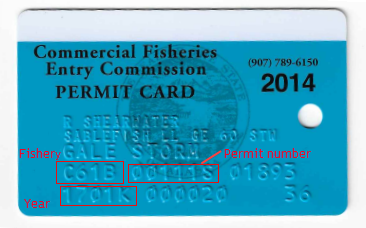
I am having trouble distinguishing letters and numbers on the CFEC permit card. How can you differentiate the number zero (0) from the letter "O" and the number one (1) from the letter I?
- To distinguish the number zero (0) from the letter O and the number one (1) from the letter I on CFEC permit cards, these characters are embossed with the following distinctive features:
- Zero (0): Ø, stroke through the number zero
- Letter “O”: O, open capital character
- One(1): 1, one flag at the top of the number
- Letter “I”: I, horizontal bar at the top and bottom of capital character
- This CFEC permit card illustrates the use of the letter I and the numbers zero(0) and one(1).
Why haven't I received a return receipt yet?
Sometimes our server goes down momentarily and receipts are not immediately sent out. If you haven't received a receipt by the end of the day and you've attempted to re-send your transmission file, please contact eLandings support by sending an email to elandings@alaska.gov
How do I edit existing reports?
A user can edit any report after their receipt has been processed for that particular report unless their report is older than 90 days. After 90 days, they are locked for editing and you will need to contact elandings@alaska.gov to unlock it.
- Go to File...Open and select the report you wish to edit.
- Make your edits and Save.
- Go to Reporting > Transmit Reports > Click the Transmit button
- If you are using File transmit method, attach the report to an email addressed to elecrep@noaa.gov so our database gets updated with your changes.
- You will receive an error message if you attempt to edit a report whose receipt has not yet been processed or if the report is older than 90 days.
- Please contact elandings@alaska.gov to have your report unlocked for editing.
How do I delete duplicate reports?
Please email elandings@alaska.gov if you know that you transmitted the same data in more than one report. If you've already contacted eLandings support and the duplicate report has been voided, you should delete that report from C:\ProgramData\sealandings\reports. In the reports folder, right-click on the applicable report number, and delete it. That report will no longer be visible when you navigate to File...Open in seaLandings.
NOTE: Deleting reports on your end does not delete it on NMFS' end, an agency staff person needs to manually back the report out of the eLandings database.
Does submitting a report more than once duplicate the data in NMFS' database?
No. When you submit a specific report more than once, the new version overwrites the old version in NMFS' database.
The only way to duplicate a report is if you create a new report with the same data and submit it to the NMFS' database.
I forgot my user ID and password.
If you forget your user ID you can contact elandings@alaska.gov obtain it.
If you have forgotten your seaLandings password, it cannot be retrieved. Follow the directions below to reset it.
How do I reset my seaLandings password?
- First, you need to access https://elandings.alaska.gov/ and use the "Forgot Password" button on the login screen to reset your password. You will be emailed a temporary password to the email associated with your User ID. When you receive the temporary password, follow the instructions in the email to reset your password on the eLandings website. Once you have successfully changed your password on the eLandings website, you will need to reset it in seaLandings too.
- Open the seaLandings program but don't log in, hit Cancel instead. Then navigate to Configuration....Users, click on the UserID that you updated on the eLandings website, then click Open. Use the Reset Password button and enter your new password. This password MUST match the password you reset on the eLandings website. Save and close the window. Then you can click on File...Login and enter your user name and new password. To finalize the change you will need to send a transmission. Follow your usual steps for either direct or file transmission. Once Once the transmission is successfully processed, your password change is complete.
NOTE: If you change your password on the web, you'll also need to change it on your seaLandings stand-alone client. If you change it on your workstation computer, you will first need to change it on the eLandings website, or you will not be able to log in.
I am going to be a Stationary floating processor for receiving crab. What do I need to report in eLandings? Required to use eLandings to report crab Landing Reports and Production Reports. No eLogbook required for stationary floating processor.
I am going to be a Catcher/processor for crab. What do I need to report in eLandings? You are required to use eLandings for crab Landing Reports and Production Reports. No eLogbook required.
I am going to be a Catcher/processor for ground fish when fishing for pcod with longline or trawl gear. What do I need to report in eLandings? You are required to use a flow scale, complete eLogbook, Landing Reports and Production Reports in eLandings.
I am going to be a Catcher/processor for ground fish when pot fishing for pcod. What do I need to report in eLandings? You are required to report Landing and Production Reports in eLandings. No eLogbook required., unless your LLP is endorsed for Halibut and PCOD.
My LLP is endorsed for Catcher Processor for Halibut and PCOD but I am only going to be pot gear fishing. What do I need to report in eLandings? You are required to complete an eLogbook, Production Reports and Landing Reports in eLandings.
We are acting as a Mothership and one of the catcher vessels lost a codend before delivering to us. How do I report this?
You will want to get an estimate of the catch from the vessel. You will then create a fish ticket for this delivery and code the catch with disposition code 98, discard at sea. You will record it in your logbook and add a comment to note what occurred.
Production Reports
I am trying to report fish oil production for a species but am receiving an error "Delivery Condition 33 (fish oil) is not valid for species". How do I report this production?
Use condition code 97 and add a comment that the condition is fish oil.
Do I need to report minced production on my Production Reports?
As long as the minced product is coming from the "tertiary product", the leftovers or what would have been thrown away from the primary or ancillary product, which was already accounted for on your production reports, then you would not document it a second time on your production reports.
Do I need to report retained for personal use catch on my Production Reports?
Yes, please record all personal use Code 95 catch on your daily production reports in the discard section.
Logbook
What are my logbook requirements if using the DCPL?
If you are submitting daily production reports, you no longer need to complete the bottom section of the DCPL which includes products, discards, and cumulative catch. The header section of the logbook should still be filled out. You may still enter products and discards if you choose.
Am I required to use the eLogbook in 2023?
- Yes - If you are a trawl catcher processor fishing AFA pollock or CDQ pollock you are required to use the electronic (eLogbook) in either the eLandings or seaLandings application.
- Yes - If you are a freezer longline catcher processor named on an LLP license, endorsed to catch pacific cod with hook-and-line gear in the BSAI or GOA while fishing under a CDQ program.
- Yes - If you are a catcher processor permitted to fish under the Rockfish Program.
- Yes - If you are a mothership.
- No - if you are a catcher vessel.
- No - if you are pot gear fishing for PCOD.
How can I get an eLogbook?
The eLogbook is an application available within the seaLandings program. Users will need to register an eLogbook for the current year through their seaLandings application.
What do I enter as my Trip start date? How do I show that I am inactive?
Your Trip start date should default to January 1st of the current year. You need to account for each day of the year in the eLogbook just as you did in the paper DCPL. You will also be asked for a Go Active date.
- If you are just registering your eLogbook and steaming up to Alaska, enter your Go Active date as the registration date (1/1/20xx) and then Go Inactive until you begin fishing activity.
What if a haul starts at the end of the year and retrieval does not happen until the new year?
If you plan on fishing through the new year, you will want to do the following:
- On January 1st, Register your 2023 logbook. Create a New Voyage, add your Gear Type(s), and Go active.
- Add any haul/set deploy information that occurs on January 1st.
- On January 1st, access your Previous Year Logbook and enter your retrieval informal for all hauls/sets deployed on or before December 31st.
- You will be able to access your 2022 logbook for at least one week into the new year to make edits.
How can Daylight Savings Time affect the logbook?
During the DST switch there is no such time as 2am on the day of the switch. The time goes from 01:59 to 03:00 without touching the intervening hour.
What if I don’t have an Observer on board until a few weeks after my first Trip?
You don’t need to enter Observer information until you have one on board the vessel. When an Observer begins their cruise with your vessel, create a New Trip Report to document the change.
What if I entered the wrong Observer name on my Trip?
You would need to edit the trip report to reflect the correct information. Any edits you make will be applied to the entire trip. Print and sign the edited PDF pages and provide a copy to the observer.
What is the difference between editing a Trip and creating a New Trip?
- Editing a Trip is to be used when there is some kind of data entry error made when first entering the information. An example would be a misspelled name or incorrect number of crew.
- New Trips are triggered by a change in any of the following
- New vessel operator
- New or additional Observers
- Loss or addition of crew members
When should I Go Inactive?
If you are not engaged in fishing activity (gear in the water) or processing activity, you should Go Inactive (ex. steaming to port for offload) but keep in mind that you can only Go Active/Go Inactive once in a 24 hour period. So if the period of inactivity is less than 24 hours you do not want to Go Inactive.
What species should I enter in my elogbook catch table? What about reporting prohibited species?
- All catcher processors are required to enter IRIU species which includes pollock (270) and pacific cod (110).
- AFA vessels must also report any salmon bycatch
- Longline catcher processors must record sablefish in the eLogbook catch table
- Prohibited Species Catch (PSC), Pacific salmon, steelhead trout, Pacific halibut, king and tanner crab, must be reported in Numbers.
I forgot to enter a set/haul on a previous day and have already entered sets to the following day. What are my options?
- If you missed adding a set entry and have already added sets/hauls on the following day, you can add in the "missed" set on the correct day by highlighting the daily report on the left-hand navigation pane and selecting edit daily report.
- Then you can select Add Haul/Set.
- The set/haul numbering will be out of order if you have added sets/hauls on the following day which is fine .
How do I enter retrieval of a set/haul that is picked up on a different day than it was deployed?
Sets/hauls that cross days can be accounted for by entering the retrieval date in mm/dd format with a space in between it and the retrieval time.

How do I delete a haul/set if I made a mistake on my set/haul entry? What if I haven’t transmitted yet?
- You can edit the Daily Report and highlight the set/haul you want to delete and click on the Delete Haul/Set button.
- You have the option of deleting the entire Daily Report and all hauls/sets associated with it and the ability to delete the entire Trip Report and all corresponding Daily Reports by clicking the Delete Trip Report button.
NOTE: We suggest you transmit after making deletes.
What if I enter a set/haul on the wrong day?
- You can edit the Daily Report and delete the set/haul and then recreate the entry on the correct date.
Daily Trip Report Logbook
- You can delete the set/haul and enter it on the correct day.
What if the observer haul # and vessel haul # do not match?
- The observer program will be reconciling this data and will likely reach out to you if there is a mismatch of data.
What do I need to give to the Observer?
You will need to provide a signed PDF copy of your logbook entries for each day to the Observer assigned to your vessel.
- If you have made edits to your logbook entries you will need to provide the Observer with new copies of those signed, edited PDFs.
Flow scale test, does it have to be done for a small amount of Pcod?
- All Pcod has to go over the flow scale no matter how small the amount.
How often do I have to conduct flow scale tests? Do I have to record all of my flow scale tests?
- A daily flow scale test must be conducted at least once each calendar day, not to exceed 24 hours.
- You must record all flow scale tests electronically and on paper - including failed ones.
How do I save my daily eLogbook entry and submit it?
Each time you make an entry in the Daily Trip Report Logbook the entries are automatically saved.
The Daily Trip Report Logbook is a report and the same as production or landing reports so you will need to submit by going to Reporting...Transmit Reports and click on the Transmit button.
- If you are using Direct transmit, then your logbook will be submitted behind the scenes via the internet.
- If you are using File transmit then you will attach the zip file to an email and send it to elecrep@noaa.gov and process the receipt when you get it as when submitting a production or landing report
When do I have to submit my eLogbook?
By Midnight the following day (just like production reports) to record the previous day of sets/hauls.
What if I am unable to transmit my eLogbook?
- If you are using the Legacy Logbook you need to contact your home office so they can report for you.
- As soon as possible, contact eLandings support at elandings@alaska.gov and let them know you are unable to report. Include any pertinent details about errors or warnings that are happening.
If you’re unable to report longer than 2 days then you will need to come back into port to fix issue.
How to Download and Print this Article as a PDF
Download:
Click the 3 dots (...) at the top right of the article
Click Export
Click Export to PDF
Wait for the PDF to load, and click Download PDF
Print:
Open the PDF
Print the PDF


Support Contact:
If you have any questions or concerns, please contact elandings@alaska.gov